
In a sentence — map how each priority service actually works today — step by step, system by system — and produce the touch-time, elapsed-time and risk baseline everything else measures against.
Sold under the Optimize10 Toolkit Licence Terms, which you will be asked to accept at checkout. The licence covers use within the purchasing organisation only. Buying for more than one company in a group, or for consulting or training work? Contact us.
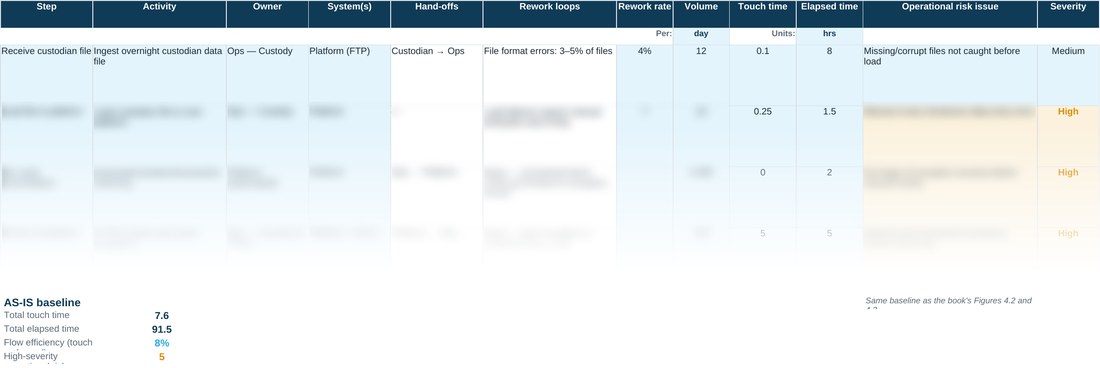
Most transformations start arguing about the future before anyone agrees what's actually happening today. This tool forces that conversation first: one row per step, the real systems, the real hand-offs, the real volumes and the real waiting time — not the version that shows up in a process diagram nobody's checked against reality.
The baseline totals at the foot build themselves from the rows above, so total touch time, total elapsed time, flow efficiency and the count of high-severity risks are always a live reflection of what's actually in the sheet, not a number someone typed in once and forgot to update. Flow efficiency under roughly 15% is normal for a process that hasn't been redesigned yet — that's the finding this baseline exists to expose, not a sign the sheet is wrong; north of 40% is genuinely strong for admin-type work.
WHY THIS HELPS
Touch time and elapsed time are tracked separately. A step can look fast on paper — low touch time — while the real gap sits in the elapsed time: hours or days spent waiting for someone else to pick it up. Splitting the two is what makes the eventual ‘quick win’ actually quick.
READING THE BASELINE
Touch time and elapsed time use exactly the same unit — set once for the whole sheet (hours, for example). Flow efficiency is simply touch time divided by elapsed time: the share of the total time that was actually being worked, rather than sitting in a queue or waiting on someone else. As a rule of thumb, under about 15% is typical for an unreformed back-office process — that's not a mistake in the sheet, it's the opportunity this baseline exists to expose. 25–40% is a well-run process; above about 40% is genuinely strong for admin-type work.
HOW THIS FITS WITH VCA
This sheet and VCA answer different questions at different altitudes. VCA walks the whole chain, from first demand to customer outcome, and shows where the damage sits; this sheet then maps exactly how that part of the operation works, step by step and minute by minute. If you’re not yet sure which services or stages deserve this level of detail, walk VCA first and map the ones it points to. The baseline you build here is also what the DES TO-BE checklist later measures improvement against.
MAP · AS-IS Mapping — the blank tool
Ready to complete for your own engagement. Blue-tinted cells are for you to fill in.
Worked example
The same tool completed end to end, using the fictional Meridian Wealth Management scenario — see what ‘done’ looks like before you start your own.
A quick walkthrough of the sheet:
Need the full method, not just one step?
All twelve instruments, bundled at a discount against buying them separately.